Pull requests, one click away
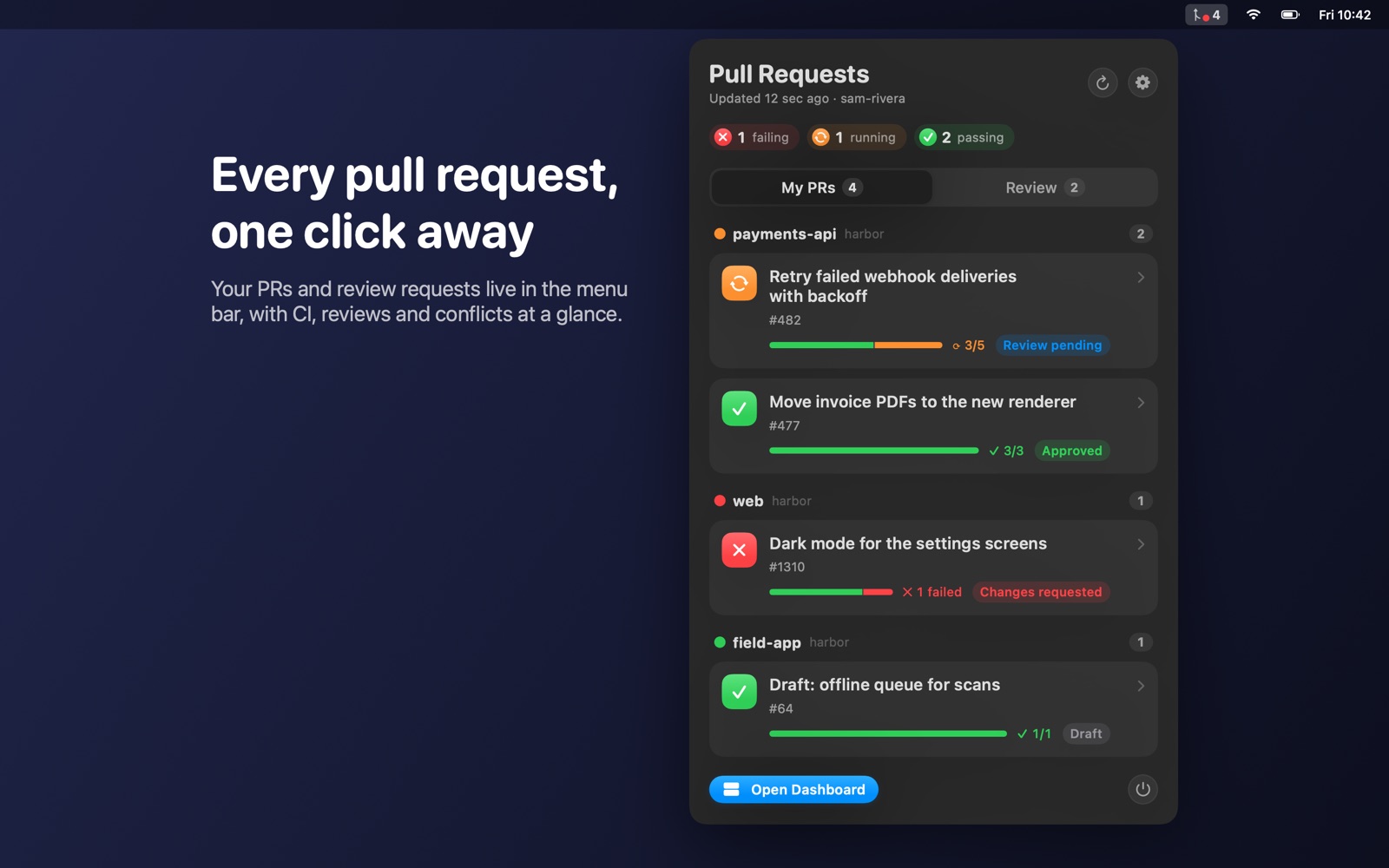
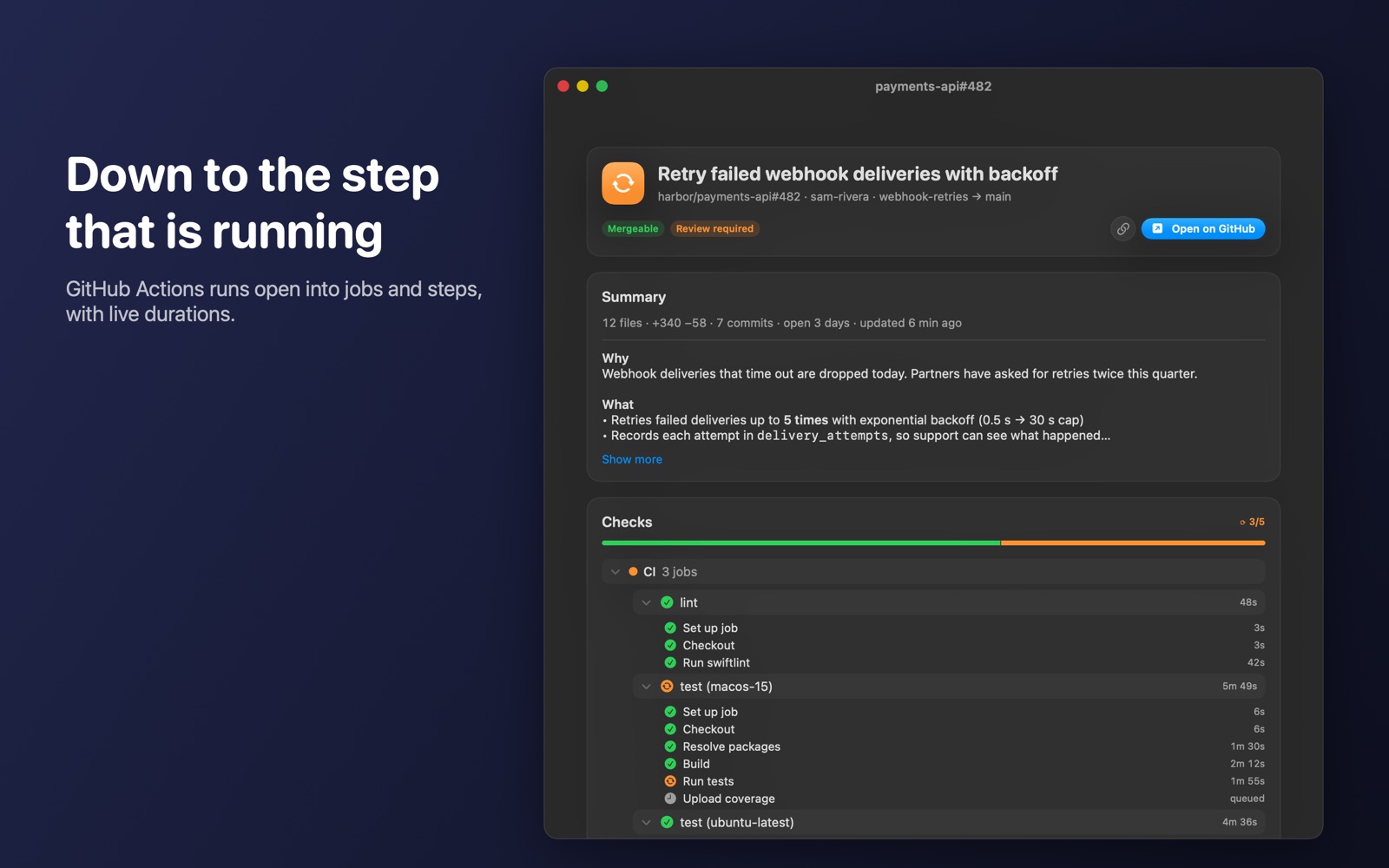
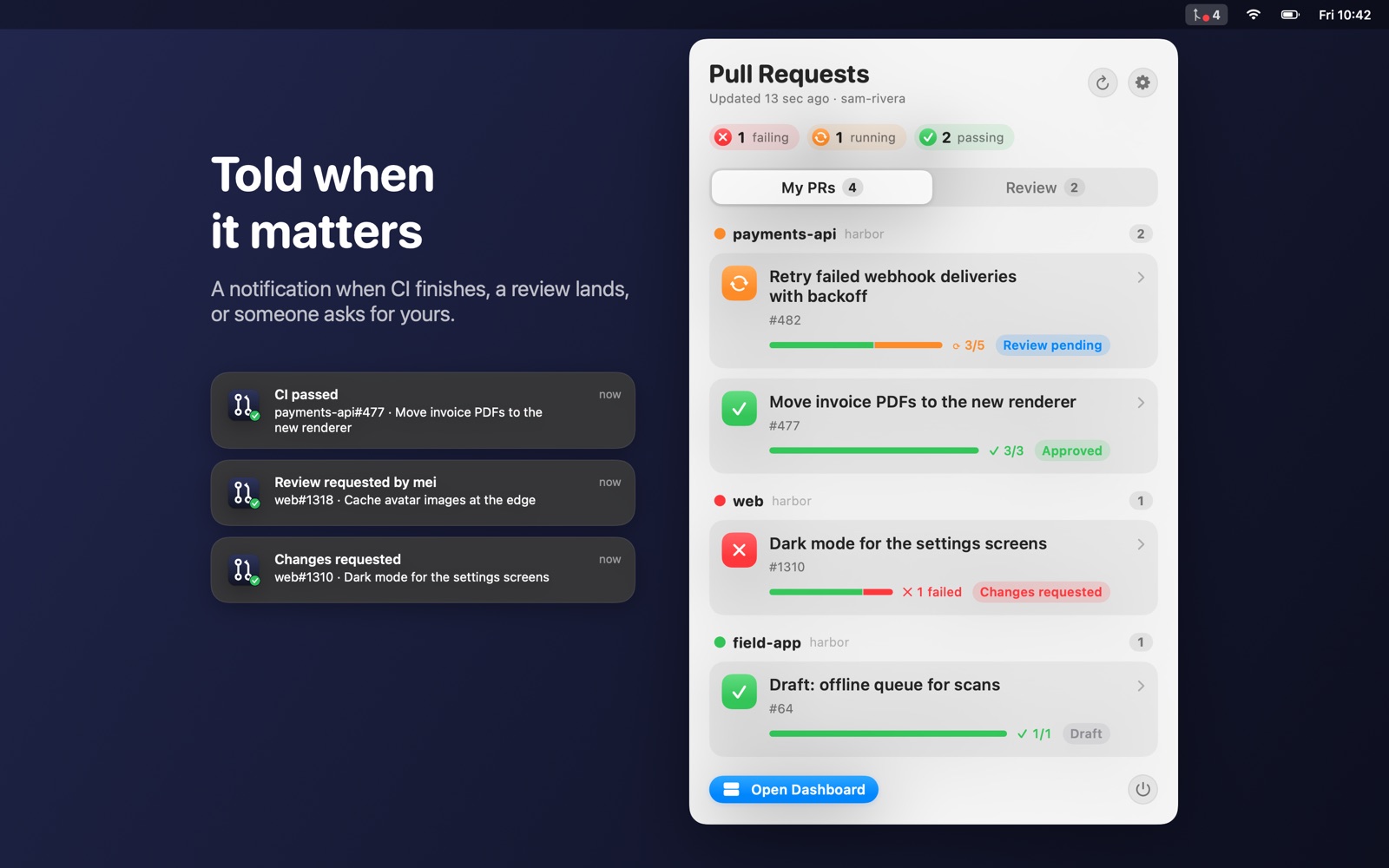
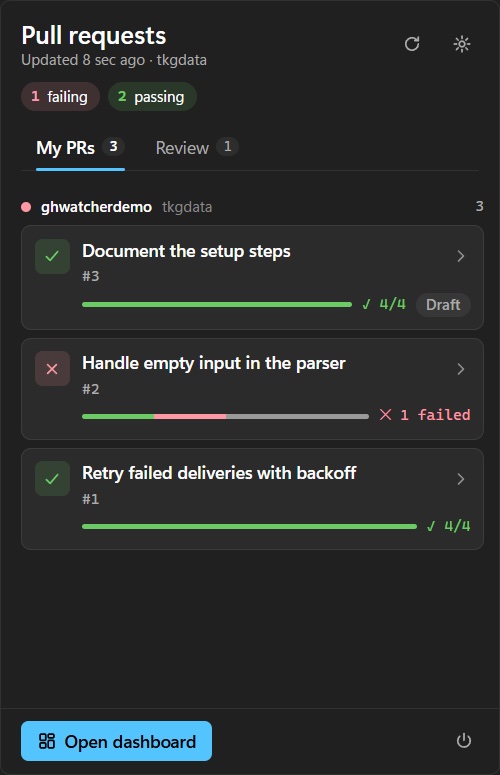
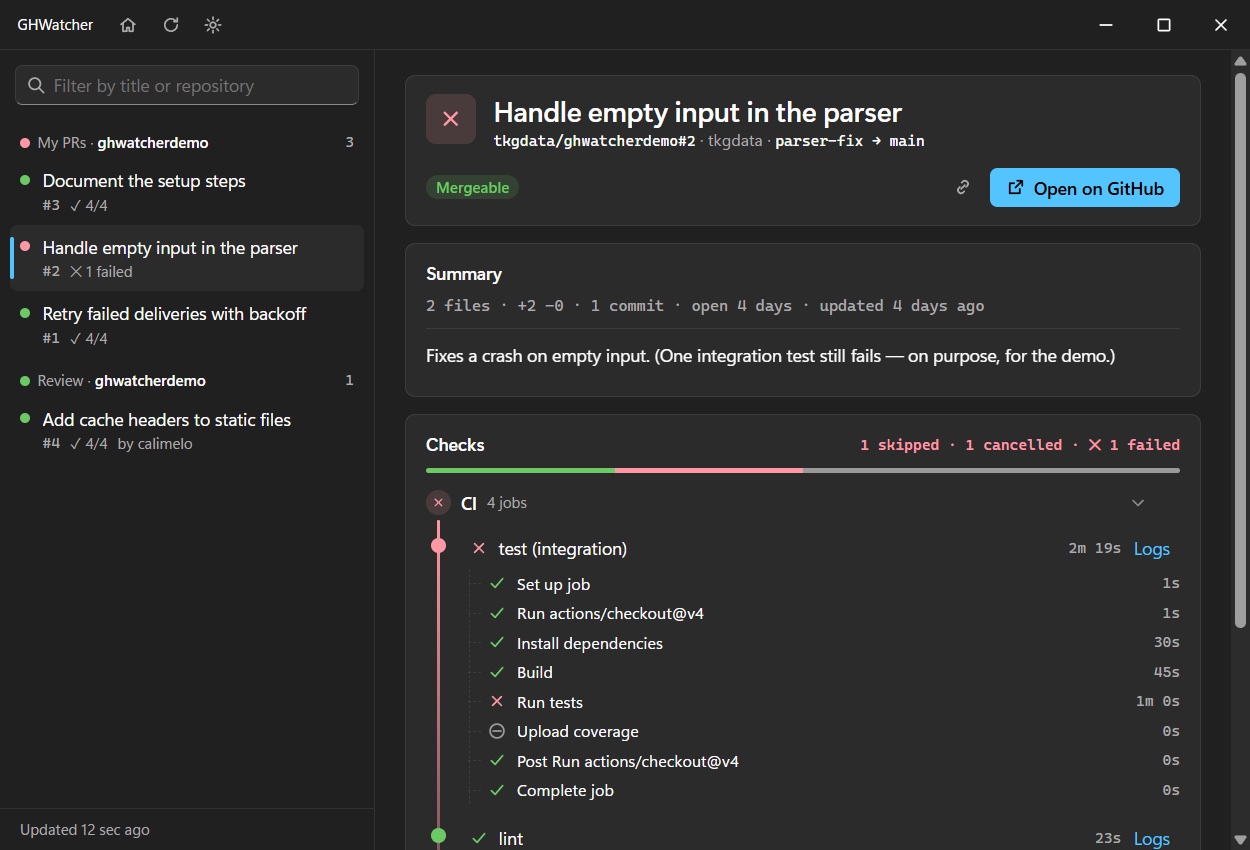
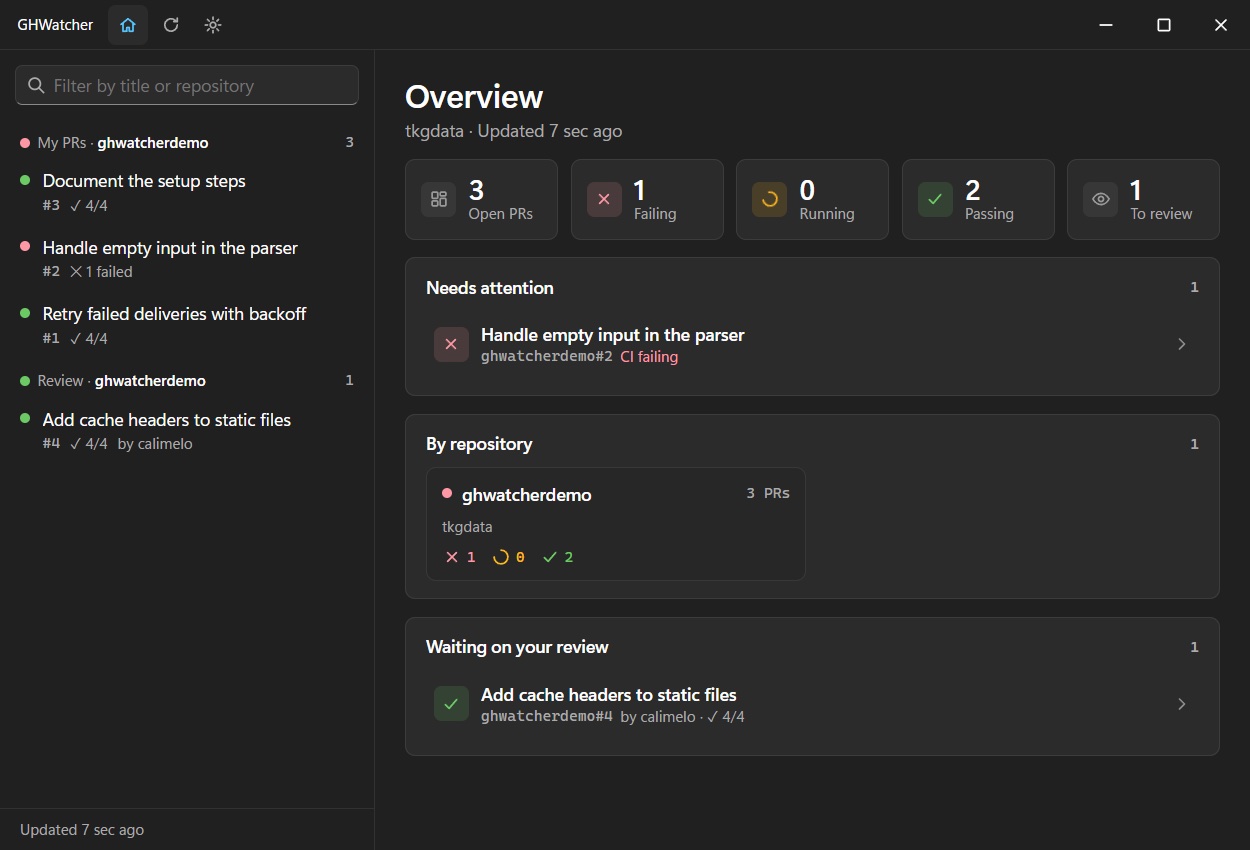
GHWatcher keeps your GitHub pull requests in the Mac menu bar or the Windows notification area: the ones you wrote, the ones waiting for your review, their CI down to the step that is running, and a notification the moment something needs you. No browser tab to keep open.
On the Mac
On Windows
How it works
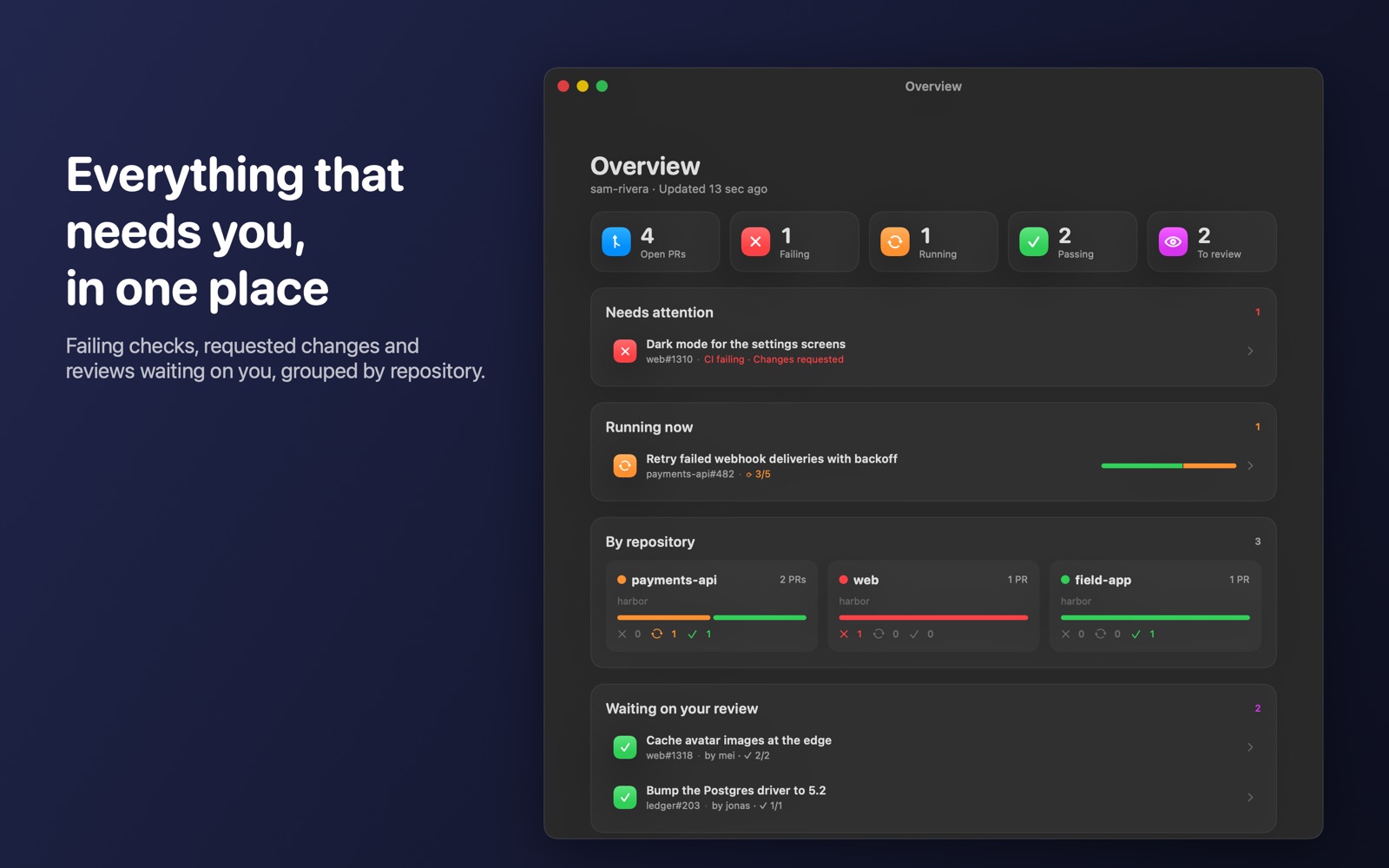
- Lives in the corner of the screen. In the Mac menu bar (no Dock icon) or the Windows notification area. Click the icon for the panel; open the dashboard when you want more room.
- Two lists. My PRs — open pull requests you authored — and Review — open pull requests that request your review.
- Checks, all the way down. GitHub Actions runs unfold into jobs and steps; other check runs and commit statuses are listed beside them.
- A summary of each pull request. Its description and the size of the change — files, lines added and removed, commits, and how long it has been open.
- Notifications. When CI finishes on your pull request, when it is approved or changes are requested, and when someone asks for your review.
- Refreshes on its own every 30 seconds to 5 minutes, respecting GitHub's rate limits. It can start when you sign in.
Connecting your GitHub account
GHWatcher reads your pull requests with a personal access token that you create on GitHub and paste into its Settings. The token is stored in your Mac's Keychain or in Windows Credential Manager, and sent only to GitHub's API.
- On GitHub, open Settings → Developer settings → Personal access tokens → Fine-grained tokens → Generate new token.
- Choose the resource owner whose repositories you want to watch, and under Repository access pick all repositories or the ones you care about.
- Under Repository permissions, set Pull requests, Actions, Commit statuses and Contents to Read-only. (Metadata is added automatically.) Contents is what lets GitHub show a private repository’s commits and their checks; nothing needs write access.
- Generate the token, copy it, and paste it into GHWatcher → Settings → GitHub token, then save it.
Fine-grained tokens and private repositories. GitHub does not let fine-grained tokens read a private repository’s check runs, so GHWatcher reads its GitHub Actions runs instead (that is what Actions: Read-only is for) and shows their jobs and steps in full. Checks from outside GitHub Actions — a third-party check app, for instance — stay hidden, and GHWatcher names the pull requests where that happens. A fine-grained token also sees the repositories of one owner only — you, or one organization. A classic token with the repo scope has neither limit.
What it does not do
- No account with us, no server of ours, no analytics. GHWatcher talks only to GitHub
- It never writes to GitHub — it reads, and opens pull requests in your browser when you want to act
- It does not keep a copy of your code or pull request data; it holds what it shows in memory
- github.com only for now — not GitHub Enterprise Server — and one account at a time
On the Mac: one payment, no subscription. GHWatcher is an independent app and is not affiliated with or endorsed by GitHub, Inc.